
How to Type in Russian: Setting Up a Cyrillic Keyboard on Mac, Windows, and Phone
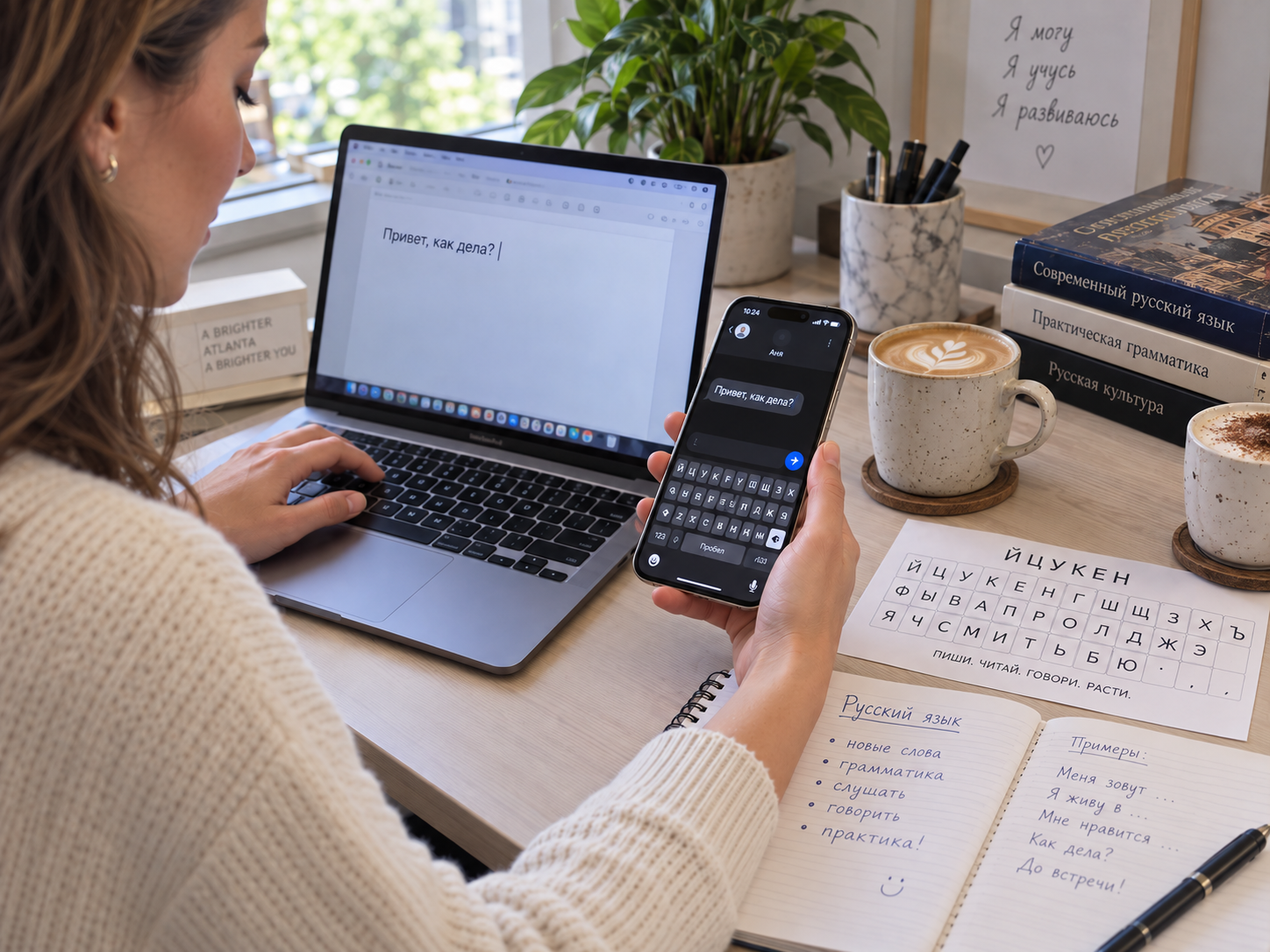
Learning to type in Russian is one of those small skills that changes your relationship with the language more than you expect. Before you install a Russian keyboard, every message feels like a special project: copy a word from a website, search for a letter, transliterate it, paste it somewhere else. After a few weeks of actual Cyrillic typing, Russian begins to feel like a language you can simply use.
The setup itself takes only a few minutes.
First: adding a Russian keyboard does not mean changing your whole device to Russian
This is a common beginner concern. On modern Macs, Windows computers, iPhones, and Android phones, you can add Russian as an input method while leaving menus, apps, system messages, and your normal interface in English.
You are adding another keyboard layout, not volunteering to troubleshoot your computer in Russian.
How to add Russian on a Mac
Apple currently places language input settings under System Settings > Keyboard.
On recent macOS versions:
1. Open Apple menu > System Settings > Keyboard.
2. Find the Text Input section and choose Edit.
3. Select the Add (+) button.
4. Search for Russian.
5. Choose the Russian input source you want and add it.
Once it is installed, you can switch input sources from the Input menu in the menu bar. Apple also provides a Keyboard Viewer, which is extremely useful while you are learning where the Cyrillic letters sit on a physical English-labeled keyboard.
The exact names of the layout choices can vary slightly by macOS version and hardware. For most learners, the standard Russian layout is the best long-term choice because it matches what Russian typists actually use.
How to add Russian on Windows 11 or Windows 10
Microsoft manages keyboards through language settings.
On Windows 11, the usual path is:
1. Open Start > Settings.
2. Go to Time & language > Language & region.
3. Add Russian as a language if needed, or open the language options for an installed language.
4. Under Keyboards, choose Add a keyboard and select the Russian layout.
Microsoft notes that you do not necessarily need to change the Windows display language simply to use another keyboard layout.
After installation, you can switch layouts from the language/input indicator in the taskbar. The convenient keyboard shortcut is Windows key + Spacebar, which cycles through installed layouts.
If Windows key + Spacebar does nothing, you probably have only one keyboard installed.
How to add Russian on an iPhone or iPad
Apple's current iPhone path is simple:
1. Open Settings > General > Keyboard.
2. Tap Keyboards.
3. Tap Add New Keyboard.
4. Choose Russian.
When typing, touch and hold the globe or keyboard-switch key and select Russian.
An advantage of phone typing is that you do not need to memorize where the letters are before you begin. They are printed directly on the screen. For many learners, the phone becomes the easiest place to build Cyrillic typing confidence first.
How to add Russian on Android with Gboard
Google's Gboard lets you add another input language without changing the overall Android language.
With Gboard installed:
1. Open any app where you can type.
2. Open Gboard's Settings.
3. Tap Languages > Add keyboard.
4. Choose Russian.
5. Select the layout and tap Done.
You can also reach language settings through Android system settings on many devices. Because Android manufacturers customize menus, the exact path outside Gboard can differ. The Gboard language menu is usually the most consistent route.
What is the Russian keyboard layout?
The standard Russian keyboard begins Й Ц У К Е Н across the top letter row, which is why you may hear it referred to informally as the ЙЦУКЕН layout, just as English speakers say QWERTY.
The keys do not correspond phonetically to English. The Russian letter а is not necessarily on the physical key marked A, and р is not on R. At first this feels inefficient. Then muscle memory develops, and the labels on your physical keyboard matter less and less.
That is why I usually recommend learning the real Russian layout rather than depending permanently on a phonetic layout where Russian letters are mapped to similar-sounding English keys.
A phonetic keyboard can help you start quickly, but it also allows you to postpone the skill you eventually need. If you expect to write Russian regularly, standard layout practice pays off.
You do not need keyboard stickers immediately
Stickers can be useful, especially if you type a lot on a desktop keyboard. They are not essential.
On a Mac, use Keyboard Viewer. On Windows, keep a small layout image beside the screen. On a phone, the letters are visible already. Within a surprisingly short time, you will stop searching for the most common letters.
The key is frequent short practice rather than one exhausting typing session.
A better way to practice than typing the alphabet
Typing а б в г д teaches the keyboard slowly because real words use letter patterns your brain can remember.
Start with phrases you actually know:
Привет! Как дела? — Hi! How are you?
Спасибо большое. — Thank you very much.
Я учу русский язык. — I am learning Russian.
Что ты делаешь сегодня? — What are you doing today?
Type the same ten or fifteen useful sentences for a few days. You will begin to remember whole movements rather than isolated key locations.
Then write short messages, shopping lists, calendar notes, or a two-sentence daily journal.
Watch out for keyboard language when passwords and shortcuts behave strangely
Every bilingual typist eventually does this: you think you are typing English, but the Russian layout is still active. Your password fails, a search becomes nonsense, or a keyboard shortcut does something unexpected.
Before blaming the computer, check the input indicator.
It also helps to choose a switching shortcut you can use without thinking. On Windows, Windows + Space is built in. On macOS, input-source switching can be configured under Keyboard settings, and many users rely on the globe/Fn key or another shortcut depending on their setup.
Why typing matters for language learning
Russian becomes easier to search when you can type it. You can look up a word in a Russian dictionary, message a teacher, search a phrase exactly as a native speaker writes it, and notice spelling patterns you miss when you live entirely in transliteration.
Typing also reinforces the fact that Russian is written in Russian letters. privet is useful as a temporary pronunciation hint, but привет is the word.
In structured Russian classes, students benefit from using Cyrillic from the beginning because reading, spelling, vocabulary, and grammar start reinforcing one another instead of remaining separate skills.
Installing the keyboard is the easy part. The useful part comes afterward, when you stop treating Cyrillic as something to decode and start using it to write ordinary things without thinking very much about the keyboard at all.